Pages

Sunday, 12 January 2014

How to repair MS Outlook .OST files when its synchronization with Exchange Server fails?

What makes Microsoft Outlook the most preferred email client all around the globe is its Offline Working Mode feature. It keeps data in .OST files that serves as a backup and proves helpful in case of losing .PST files. All the mailbox items such as emails, notes, journals, calendar entries, contacts, tasks, posts, task requests, appointments, meeting requests, distribution lists, etc. are stored in Offline mode as well. It is just a replica of exact Exchange Server user mailbox and is stored on user’s local machine. On establishing connection with Exchange Server, every single change made to the user mailbox items gets reflected on Exchange Server simultaneously.

These .OST files may get damaged, corrupt or inaccessible due to numerous unseen reasons such as virus attacks, synchronization problem, network issues, mailbox corruption, oversized OST file, damage of database, breakdown of Exchange Server, software or hardware malfunctioning, insufficient storage space, accidental deletion of Server, abrupt application or Server shutdowns, etc.

In case MS Outlook fails to synchronize .OST files with MS Exchange Server, you might face some error messages. Failure in the synchronization of .OST files with Exchange Server may also lead to missing of files in Outlook mailbox. OST Integrity Checker (Scanost.exe) is an inbuilt utility by Microsoft that assists in checking and repairing the synchronization issues of MS Outlook.

While using OST Integrity Checker tool, MS Outlook mail account must be connected with the Microsoft Exchange Server. It is also to be noted that, while using OST Integrity Checker tool, it does not make any changes to the running MS Exchange mailbox. The tool scans both .OST file and mailbox on the Server running Exchange, compares the items and folders in each and tries to reconcile synchronization differences between them.

An error message that you might face when while synchronizing an .OST file with MS Exchange Server fails:

“Unable to start processing services. /offline.ost cannot be accessed. You must connect to your Microsoft Exchange Server computer at least once before you can use your offline folder file.”

Steps – How to Repair MS Outlook .OST File using OST Integrity Checker (Scanost.exe):

1.Locate Scanost.exe tool. In case you are using Outlook 2010, it could be found at “C:\Program Files\Microsoft Office\Office14” or in case you are using Outlook 2013, it will be at “C:\Program Files\Microsoft Office\Office15”.
2.Open your Outlook MS Exchange account.
3.Double-click Scanost.exe and click “Browse” to select the .OST file that needs to be repaired. Open “Options” dialog to specify the scan log options and click “Start” to initiate the scanning process. The Scanost.exe tool syncs local .OST content with respect to Exchange mailbox.


4.In order to get the same .OST file fully repaired, it can be rescanned with Scanpst.exe as well. In case, any errors still remains in local .OST file after repairing with Scanost.exe tool, the Scanpst.exe repairs them.


5.On completion of the repairing process, following window appears displaying the folders and items found in the local .OST file:
In case, you are using Microsoft Exchange account and the .OST file is missing email items or is not synchronized with the Exchange mailbox, it is recommended to recreate the .OST file.

Steps - How to Re-create an Offline Outlook Data (.OST) File?

1.Exit MS Outlook.
2.In Control Panel > Click Mail.
The title bar of the Mail Setup dialog box displays the name of the current profile. To select a different existing profile > Click Show Profiles > Select the Profile Name > Click Properties.
3.On the E-mail tab > Select the Exchange Account > Click Change.
4.Clear the Use Cached Exchange Mode check box > Click More Settings.
5.On the Advanced tab > Click Offline Folder File Settings.
6.Click Disable Offline Use > and then in the dialog box that appears > Click Yes.
7.Again, click Offline Folder File Settings > Click OK > in the dialog box that appears > Click Yes.
8.Under Cached Exchange Mode Settings > Select the Use Cached Exchange Mode check box > Click OK > Click Next > Click Finish.
9.In the Account Settings and Mail Setup dialog boxes > Click Close.

In case, OST Integrity Checker tool fails to repair the damaged .OST file or fails to recover the required email item, then user must prefer to use a prominent third-party tool to repair the damaged .OST files.

Numerous third-party tools are available in the market nowadays for recovering user mailbox data from damaged or corrupt .OST files. Kernel for OST to PST is one such advanced and powerful email recovery solution that prominently repairs damaged .OST files, recovers user mailbox data with complete accuracy and stores them in .PST files that can be further easily accessed with MS Outlook. Moreover, the software facilitates saving recovered email data in .DBX, .MSG, or .EML file formats. Extending its full support to all available versions of MS Outlook, Microsoft Exchange Server, Outlook Express and compatibility with all Windows OS platforms, the software is also available as a free trial version letting its users evaluate its capabilities before making an actual purchase.

Visit this link http://www.osttopstconverter.recoveryfiles.org to know more about Kernel for OST to PST Software.

Thursday, 14 November 2013

How to create a new OST file if old OST file gets corrupt

Even if we want to, the use and importance of emails could not be avoided in present times. Email communication is by far the easiest and most reliable form when it comes to exchange of ideas or information record keeping. Usage of MS Outlook is synonymous with email communication. Outlook is the most preferred email client because of its Offline Working Mode feature. It keeps data in OST file that serves as a backup as well in PST data loss occasions. The OST mode is also called Cached Working Mode that keeps the data and sends it as soon as it finds network connectivity. Offline mode stores all mailbox items including emails, notes, journals, calendar schedules etc. Trouble creeps in when due to virus attacks or similar issues, user loses entire mailbox including OST files stored. 

When damaged, OST files get inaccessible, corrupt or give several errors. There are OST file repair options available in all versions of MS Outlook. However, they keep changing such as, in MS Outlook 2000, 2003 Detect and Repair Tool is present. In MS Outlook 2007 version, Office Diagnostics Tool replaced Detect and Repair tool. In MS Outlook 2010 and 2013, the Repair Option is made available but it is exclusively designed to repair Outlook installation files and registry entries. One can find Repair Option at:

Start -> Windows Control Panel -> (Add/ Remove) Programs -> Microsoft Office -> Change installation-> Repair

In order to recreate a new OST file in case of OST damage in MS Outlook 2013, follow the steps below. 

1. Close, Exit MS Outlook 2013

2. Start – > Control panel and double-click on Mail

You will see the current profile in dialog box of Mail Setup. If you want to choose a different profile, select Show Profiles and choose accordingly. 

3. Click Email Accounts inside Mail Setup Dialogue box

4. Select Data Files tab, click on Exchange account and then click on Open File Location
For the Exchange Account, an explorer window opens to the location of data file. Both dialog boxes- Account Settings and Mail Setup remains open behind the file explorer window.

5. Close both Mail Setup and Account Settings dialog box and return to file explorer window

6. In the file explorer window, select Exchange data file and Right-click. Click Delete
When you re-open the OST file after closing, a new OST file is created for the account mentioned.

There is a recovery option also available along with these that can be used under OST file damage situations. However, if you fail to do so, you can always trust third party tools that are available in the market currently. Kernel for OST to PST Conversion tool is third party efficient utility that helps users to perform complete OST recovery and convert them to easily accessible PST files as and when required. Embedded with amazing set of features, the software performs complete OST recovery including emails, calendars, contacts, tasks, posts, task requests, journals, notes, appointments, meeting requests, distribution lists, etc. with accuracy from OST to PST. The recovered items are saved in PST, DBX, MSG or EML format as required. In addition, the software comes with free trial version that allows user to try the utility before buying. It is supported by almost all versions of MS Outlook and MS Exchange.To know more about this tool you can visit:  http://www.osttopstconverter.recoveryfiles.org/

Tuesday, 6 August 2013

What to Do When Some Items Are Missing in Your Outlook Mailbox after Synchronization?

What to do when you find that some items are missing in your Outlook mailbox or OST even after synchronizing it with Exchange Server mailbox? Probably this has happened because of no synchronization or synchronization errors. Synchronization error is a very common problem faced by most of the Outlook users. 


Checking for Proper Synchronization

Though Offline Storage Table (OST) offers you the convenience of working offline (Cached Exchange Mode) with MS Outlook, it may cause frequent errors if you do not use MS Outlook application properly. In case of error, you should verify that synchronization of your Outlook OST with Exchange Server mailbox is proper.


If the synchronization is proper, the number of items in your server folders and Offline folders will be the same. You can check this by checking the synchronization properties of the folders. For this, right click on the folder and select Properties. Click the Synchronization tab (it will be present only if you have set up your profile to use offline folders) and see the following fields under Statistics for this folder: Last Synchronized on, Server folder contains and Offline folder contains. 

If the synchronization is proper, the number in the field Server folder contains will be equal to the number in Offline folder contains field.

Verifying the Outlook Profile Settings for Proper Synchronization

If the synchronization is not proper, first you need to verify the profile settings by following the steps given below, (steps vary according to the version of MS Outlook).

Steps to Verify Outlook Profile Settings to avoid Synchronization Errors
Outlook 2003
Outlook 2007
Outlook 2010
  1. Go to Tools>E-mail Accounts
  2. Confirm that View or change existing e-mail accounts option is selected under the Email section of the E-mail Accounts dialogue box; click Next.
  3. Confirm that Mailbox – account name is selected in the Deliver new mail to the following location list.
  4. Click the Microsoft Exchange Server object, followed by Change.
  5. Confirm that Use Cached Exchange Mode is selected; click Next.
  6. Click Finish, click OK.
  1. Go to Tools>Account Settings
  2. Confirm that Mailbox – account name is set as default under the Data Files tab.
  3. Click the E-mail tab.
  4. Click Mailbox – account name followed by Settings.
  5. Confirm that the Use Cached Exchange Mode option is selected under the Advanced tab; click OK.
  6. Click Close in the Account Settings dialogue box.
  1. Go to File>Account Settings
  2. Confirm that Mailbox – account name is set as default under the Data Files tab.
  3. Click the E-mail tab.
  4. Click Mailbox – account name followed by Settings.
  5. Confirm that the Use Cached Exchange Mode option is selected; click OK.
  6. Click Close in the Account Settings dialogue box.
      1. Finally, exit Outlook, reopen it and synchronize folders.

OST Integrity Check Tool

OST Integrity Check Tool or Scanost.exe is an inbuilt Microsoft tool to check and repair the synchronization issues of Microsoft Outlook. Usually you will receive error messages when the Outlook application fails to synchronize your Outlook Mailbox (OST) with the mailbox in Exchange Server. You may also find that some files missing in the Outlook mailbox. In that, you can use this tool to check the OST files.

To use the OST Integrity Check Tool, your Outlook needs to be connected to the Exchange Server. While connected to the Exchange Server, the OST Integrity Check tool scans the mailbox folders and items on the Exchange Server. To run the Scanost.exe, quit the Outlook application and follow the steps given below:
  1. Double-click Scanost.exe (located at C:\Program Files\Common Files\System\MSMAPI\Local ID folder)
  2. Go to Profile Name list and click the profile that contains the OST that needs to be checked.
  3. Select Repair Errors checkbox.
  4. Click Begin Scan.
The OST Integrity Check Tool checks for the OST issues and resolves them. If you go the Deleted Items folder of the Outlook after OST Integrity Check, you can view a message with the subject OST Integrity Check. This is the Scan Log of the OST Integrity Check operation you have performed. It enlists the OST issues found by the OST Integrity Check Tool.


Our discussion about the synchronization shows that we need to have a good technical understanding of the Microsoft Exchange Environment to deal with the issues related to Outlook. Also, it consumes a lot of time and labor. All these difficulties can be avoided if you use a professional tool that can deal with all types of Outlook issues. Kernel for OST to PST is such a tool. convert OST to PST is a comprehensive and easy-to-use tool to deal with all the issues related to MS Outlook.

Monday, 29 July 2013

How to Import or Export PST files in MS Outlook?

How can you import or export Outlook data from one computer to another? Many Outlook users ask this question every day. MS Outlook has the facility to import and export Outlook messages, contacts, calendar items, tasks and notes from one computer to another. 

However, it is impossible to import old OST file to New Outlook profile. It is difficult to recreate old Outlook profiles as no inbuilt option in MS Outlook gives you the option to import OST files.

Import and Export Wizard in MS Outlook 2010

Steps for Outlook migration are slightly different in various versions of Outlook. Here our discussion is based on the version Outlook 2010. The Import and Export Wizard of Outlook 2010 helps you easily migrate Outlook data from one computer to another and to restore your Outlook data backup. Follow the steps given below to perform easy Outlook migration:

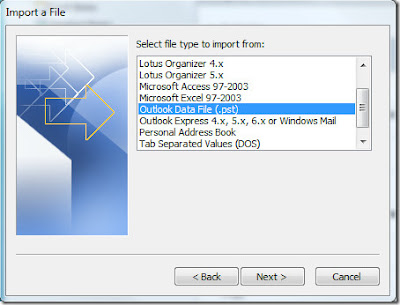
  1. Go to File > Open > Import
  2. Click Import from another program or file when the Import and Export Wizard appears; click Next.
  3. Click Outlook Data File (PST); click Next.
  4. Click the Browse button and select the file that is to be imported; click Next.

      In this step, do not forget to select appropriate option from the three:
      • Replace duplicates with items imported
      • Allow duplicates to be created
      • Do not import duplicates)
  5. Enter the password and click OK if you are prompted to do so.

    (It happens only if a password has been assigned to the Outlook Data File)
  6. Set the desired options for the given below and click Finish.

      • Select the folder to import from:
      • Select/deselect Include Subfolders
      • Select Import items into the current folder or Import items to the same folder in: ……… (Browse the required folder using the Browse button).
In addition, it is possible to configure Outlook for roaming users. It helps the Outlook user to use different workstations in the same network. But, the network computers used by the roaming user should have the same operating system and the same Outlook version. 

Many third party applications help you perform many activities that are not possible with the inbuilt tools of MS Outlook. They also allow you perform many Outlook tool activities in a simpler and easier way. Kernel for OST to PST is such an application.

The primary function of Kernel for OST to PST is to restore your inaccessible Outlook OST files by convert OST to PST. It enables you restore corrupt and damaged files and to migrate mailboxes. This application is compatible with almost all versions of MS Exchange Server and MS Outlook and can be installed with all Windows versions.

Thursday, 4 April 2013

Resolve the error encountered in synchronizing the OST mailbox due to 2 GB file size limitation


When trying to set-up a connection with MS Exchange server but it starts showing up problems then the situation could be fishy. The connection error, most of the times, is the consequence of synchronization problem, network issues, mailbox corruption, etc. Yet another situation which could be the reason of synchronization error of OST mailbox with the exchange server could be oversized OST.

Let us consider a real-life situation where you try to set up the connection with MS Exchange server, unaware of the fact that the OST has exceeded the 2 GB file size limit. As a result, the following error is encountered:

Errors in background synchronization
Within the Deleted items folder of Microsoft Outlook Express, the synchronization log consists of the following entries:
  • 15:19:28 Synchronizing Mailbox
  • 15:19:28 Synchronizing Folder 'Outlook Security Setting'
  • 15:19:28 Error synchronizing folder
  • 15:19:28 [8004060C-53F-0-550]
  • 15:19:28 The OST has reached its maximum size. To reduce the amount of data in this OST,start Outlook in offline mode, select some item that you no longer need, permanently (press SHIFT + DEL) delete them, then re-sync this folder.
After displaying the error message, MS Outlook gets terminated. However, this problem is encountered in MS Outlook 2002 and earlier versions only as they limit the OST file size to be up to 2 GB only. As a solution to it, the irrelevant and unused items should be deleted from the OST mailbox but if the data items contained within the mailbox gets corrupted then they needs to be repaired in order to make them accessible.

OST conversion can be done by using an efficient convert OST to PST utility which enables the users to access the OST mailbox items in MS Outlook itself. But before you choose a utility for yourself, the main thing that should be considered is that the software should be compatible with the version of MS Outlook and MS Windows which you are using so that compatibility issue does not arise.

Kernel for OST to PST conversion tool is one such expedient software that enables the user to accurately repair and recover the OST mailbox data items such as emails, contacts, tasks, appointments, calendar, to-do lists, notes, etc. The powerful algorithm embedded within the software enables recovery of every single bit of data with precision. After recovering the data, the software allows to save it in PST format which can be accessed in MS Outlook itself.

Friday, 12 October 2012

Fix Outlook OST Synchronization Error 8004011D-526-80040115-0 without wasting any time

Living in an era where everything is getting more digitized, it’s absolutely hard to ignore the significance of email communication. Especially when a minor lack of communication could bring your business come to standstill. But at the same time as the world is filled with lots of uncertainties, 24X7 hours of exchange server accessibility is out of the question. Thus to tackle with such conditions, the concept of OST files was introduced by Microsoft which is nothing more than the replicas of the exact Exchange Server user mailbox that is stored on the user’s local machine. And, once the connection with the Exchange Server gets established, every single change you made to the user mailbox items simultaneously gets updated on the server mailbox.

Now, important aspect that you must note is that there must be a proper connection with MS Exchange Server. Any error in connection could make it difficult for you to sync its offline folder (.ost file). However, such issues could be resolved easily by restoring the file contents from a backup, preferably a PST file. But in situations where you don’t have a proper backup, then the best option that you could work out is OST conversion with the help of a convert OST to PST utility. Such application successfully allows you to access emails, contacts, tasks, calendars, and other items of inaccessible OST files by converting them to PST.
Let’s be more specific and consider the situation where you get encountered with an error message while synchronizing the Outlook OST file with the MS Exchange Server.
  • Synchronizing Mailbox 'USER'
  • Synchronizing Hierarchy
  • Synchronizing server changes in folder 'Inbox'
  • Downloading from server 'Server_Name
  • 1 item(s) changed read-state in offline folder
  • Synchronizing server changes in folder 'Deleted Items'
  • Downloading from server 'Server_Name'
  • Error synchronizing folder
  • [8004011D-526-80040115-0]
Microsoft Exchange is not available. Either there are network problems or the Exchange computer is down for maintenance. 

Synchronization error 8004011D-526-80040115-0 clearly indicates that MS Outlook has been unable to synchronize with Exchange Server due to network problem. At the same time you could also deny the fact this problem might also have occurred due to corruption in OST file. Whatever is the reason, a simple operation of OST migration can be very beneficial in tackling with such conditions. 

Third-party OST to PST conversion application like Kernel for OST to PST conversion tool can be used to convert an unusable or damaged OST file to a PST file. Integrated with interactive user interface along with some of the most advanced features, this tool convert OST to PST without brining any change in the original file content. Each and every restored item is saved in Personal Storage Table (.pst) file that can be accessed by Microsoft Outlook and other compatible email clients.

Wednesday, 29 August 2012

Ensure full accessibility of OST files by converting them in PST form

When you work in MS Outlook environment connected with MS Exchange Server, the all your information get store in Outlook OST file format. Although, like any other file format, there is also a great possibility that these OST files get corrupt because of various reasons such as damage of database, breakdown of exchange server, malfunction of software or hardware, insufficient storage space, accidental deletion of Server, abrupt application or Server shutdowns, virus attacks.

These instances results crash situation in MS Exchange Server and a long duration connection disruption between Outlook Exchange servers ultimately damage OST files. Whenever such critical situation arises and corruption occurs in MS Exchange Server and you become unable to access your OST files then it is very significant to recover those file as soon as possible. Really, any such incidence could make you absolutely handicap as it may hinder your daily work assignment and email communication.

Outlook OST files are just like the replica of Server-based folders of your MS Exchange Mailbox and you would not like to take any chance of OST file corruption. As a result, the most practical way which should be followed by you in order to regain full access right to those OST files is by performing OST to PST conversion. Typically, there are two methods which can be used to perform OST to PST conversion – Manually and Professional OST to PST conversion. The manual process is not suitable as in most of the circumstances; this process takes too much time to complete the conversion process.

On the other hand, taking help of third party effective OST to PST conversion tool such as Kernel for OST to PST conversion, you become able to convert MS Outlook OST files into PST file format within few minutes. With the help of this OST to PST conversion utility, you can easily convert all email messages, folders, posts, meeting requests, journals etc in Outlook PST file format. Undoubtedly, it is one of the best email conversion tools that can help you to retrieve emails from corrupted OST files just by taking few minutes of time. The utility performs an absolute and accurate scan of the inaccessible OST file and then place all the emails along with their attachment.

Just after completing the scanning process, every email message are displayed in a tree like structure so that you can simply make sure recoverable email message and then save them at the preferred location in PST format. One of the best features of this software is its interactive and user friendly interface due to which it can be used even by novice users having no technical knowledge. Furthermore, convert OST to PST software is very easy to install on any system having any version of Windows operating system.

Related Posts Plugin for WordPress, Blogger...